
Offline Recovery Bundle
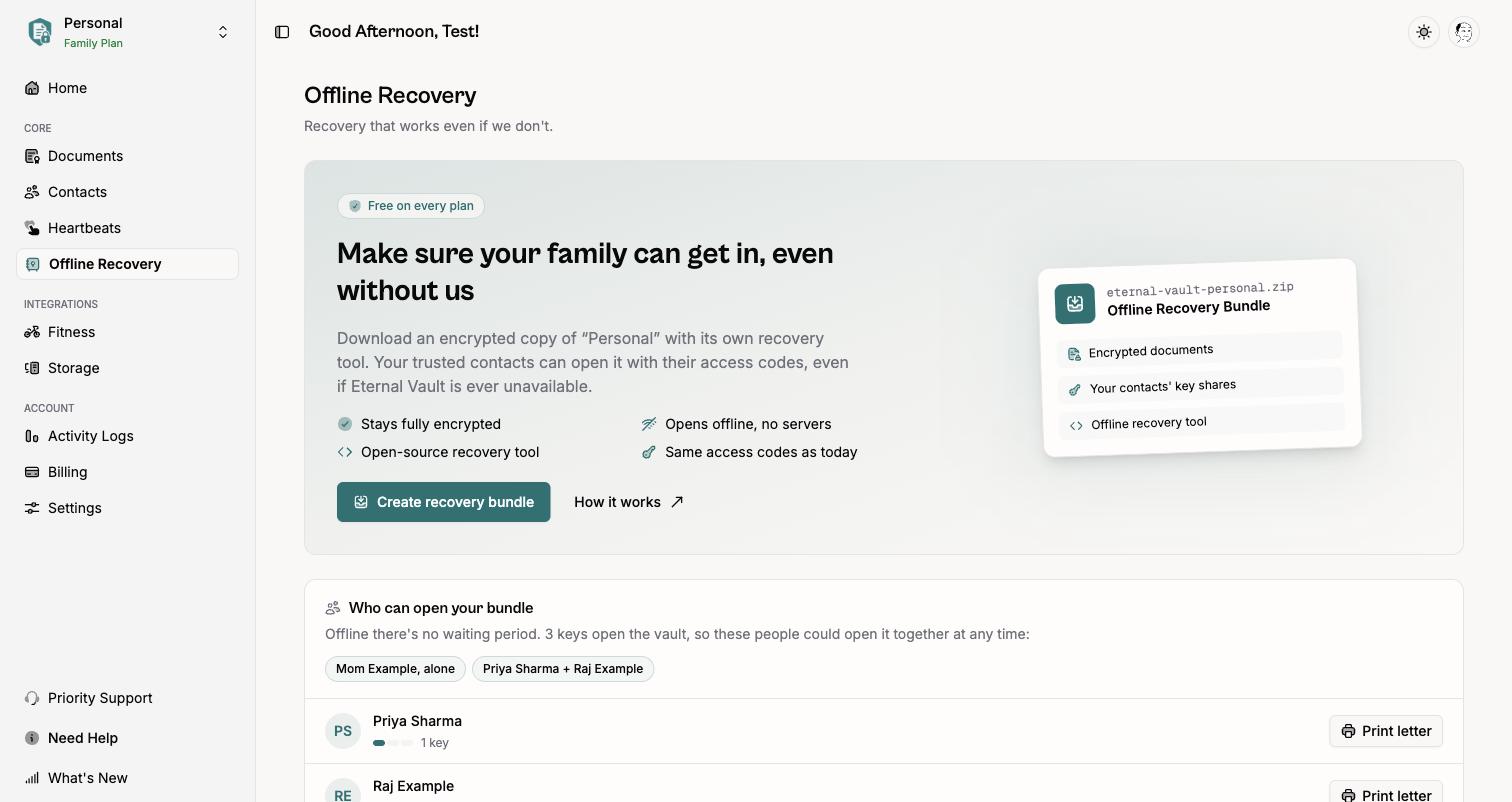
An Offline Recovery Bundle is an encrypted copy of your vault, saved as a single .zip file. Your trusted contacts can open it with the same access codes they already have, using a free recovery tool that runs on their own computer. It doesn’t need Eternal Vault’s servers, so it works even if we’re ever gone.
It’s free on every plan.
Before you start
- Add your trusted contacts and make sure they’ve verified their email. Unverified contacts aren’t included in the bundle.
- Have your master key handy in case the dashboard asks for it.
1. Create your bundle
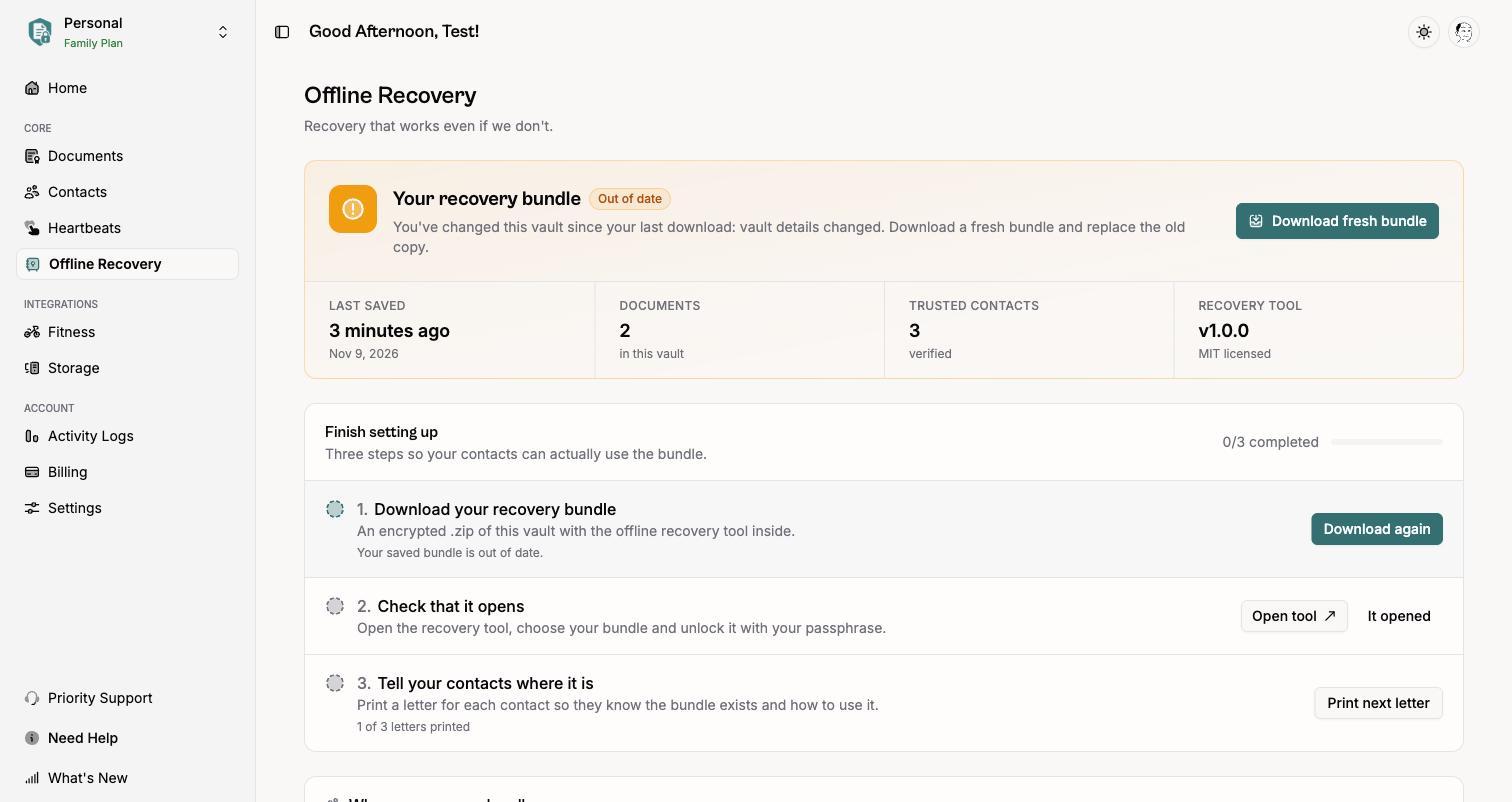
Open Offline Recovery from the sidebar and select Create recovery bundle.
You’ll see exactly who could open the bundle on their own or together, along with an important note: offline, there’s no Inactivity Threshold. Anyone who holds the file and enough access codes can open it right away. Tick the box to confirm you understand, then select Download bundle.
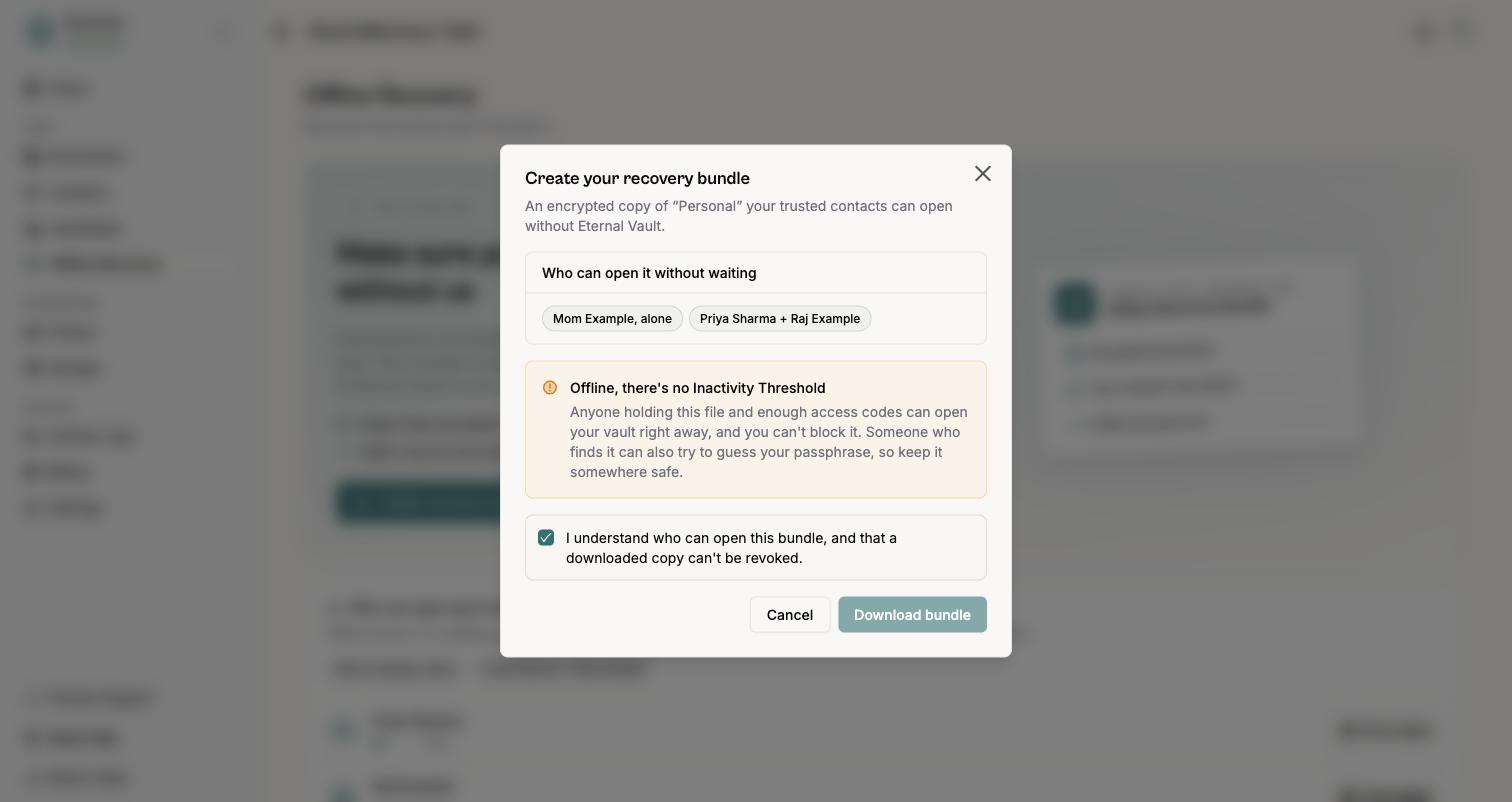
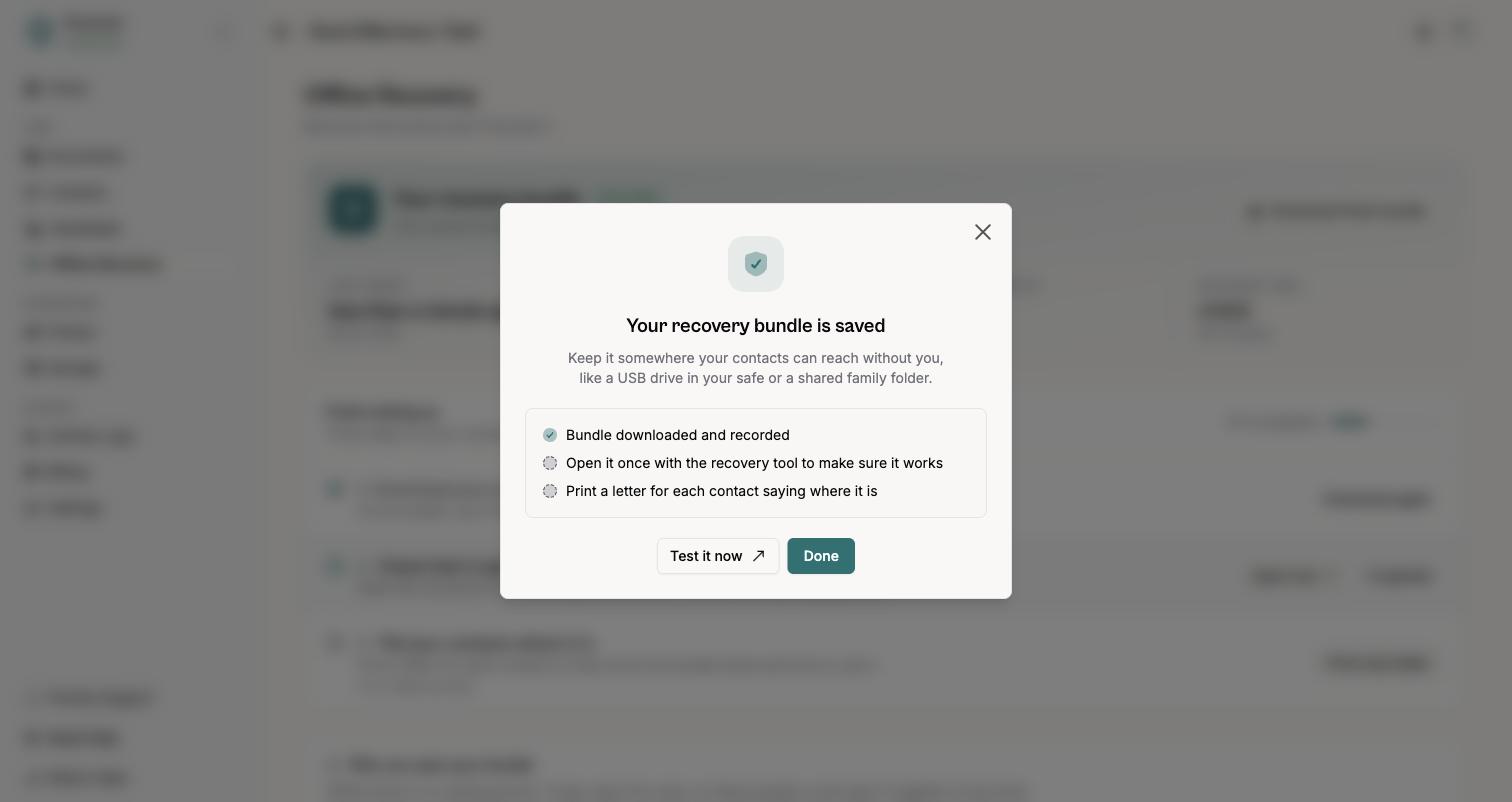
Your bundle is encrypted on your device and saved as a file named like eternal-vault-personal-2026-11-09.zip.
2. Check that it opens
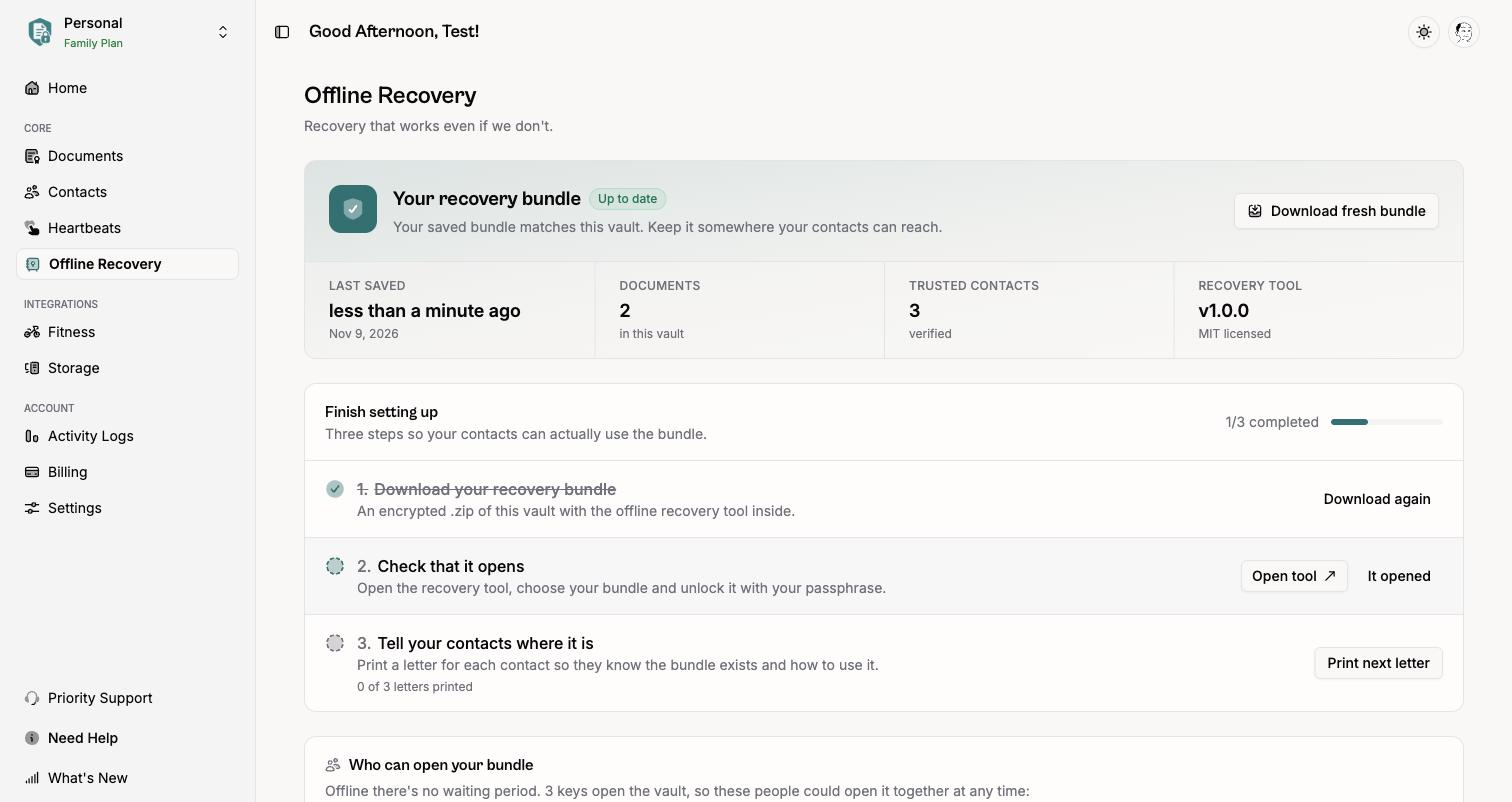
Select Open tool on the Offline Recovery page. Choose your bundle, switch to the tab with your name, and enter your master key. If you see your documents, the bundle works. Then select It opened to tick off the step.
3. Store it and tell your contacts
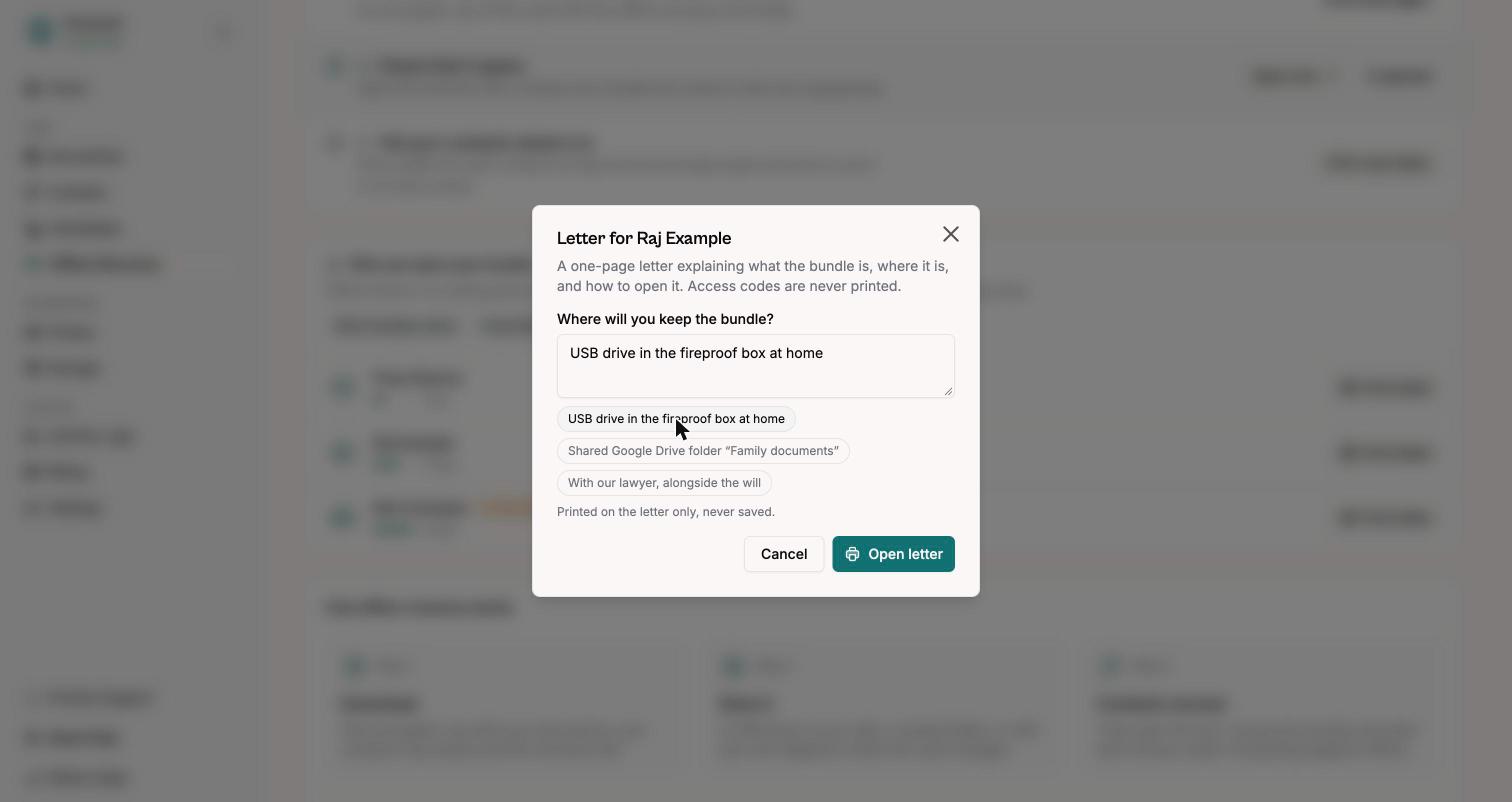
Keep the bundle somewhere your contacts can reach without you: a USB drive in a safe, a shared family folder, or with your lawyer and your will.
Then print a letter for each contact. Select Print letter, say where the bundle is kept, and print it. The letter explains what the bundle is and how to open it. Access codes are never printed.
Keeping it up to date
A bundle is a snapshot. When you add or edit documents or contacts, the page shows Out of date and a banner appears on your Home page. Download a fresh bundle and replace the old copy.
Removed a contact? Copies you downloaded earlier still include their keys. Destroy old copies and keep only a fresh bundle.
Good to know
- Everything is encrypted, including document names. Someone who finds the file can’t read it without enough access codes.
- Offline means no waiting period. Enough of your contacts together could open the bundle at any time. Only create one if you’re comfortable with that, and keep it somewhere safe.
- The recovery tool is open source. It’s inside every bundle, and published at github.com/AkashRajpurohit/eternal-vault-recovery.