
Open an Offline Recovery Bundle
Someone trusted you with access to their Eternal Vault and left you an Offline Recovery Bundle, a .zip file. Here’s how to open it. It takes a few minutes and works on any computer, without an internet connection.
You’ll need
- The bundle, a file named like
eternal-vault-<name>-<date>.zip. Their letter says where it’s kept. - Your access code, the 6 words Eternal Vault emailed you when you were added as a contact.
- The recovery tool,
recover.html. It’s inside the bundle, or download it from GitHub.
Steps
1. Open the recovery tool
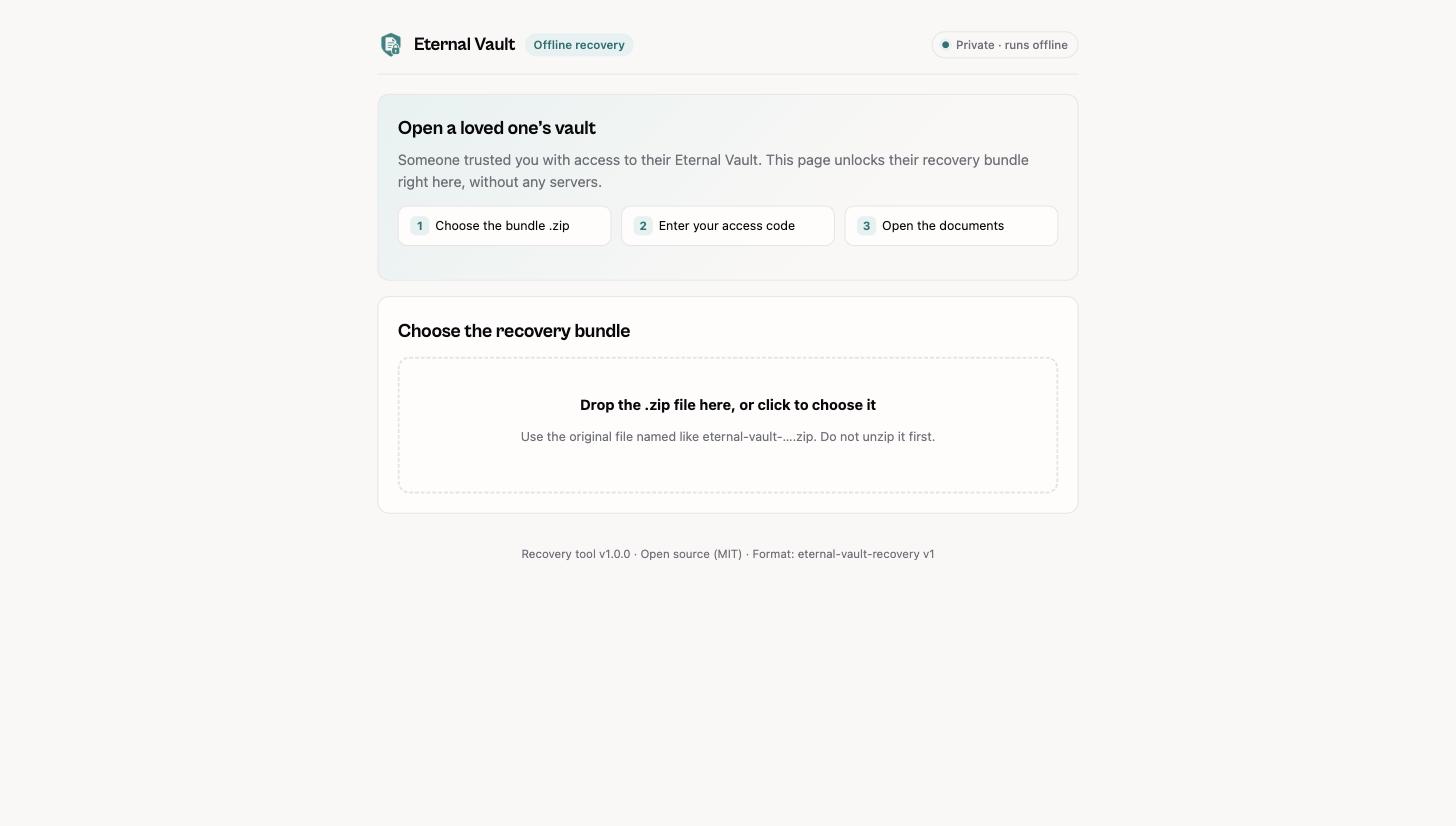
Open recover.html in your browser. Double-clicking the file is enough.
2. Choose the bundle
Drop the .zip onto the page, or click to choose it. Don’t unzip it first.
3. Enter your access code
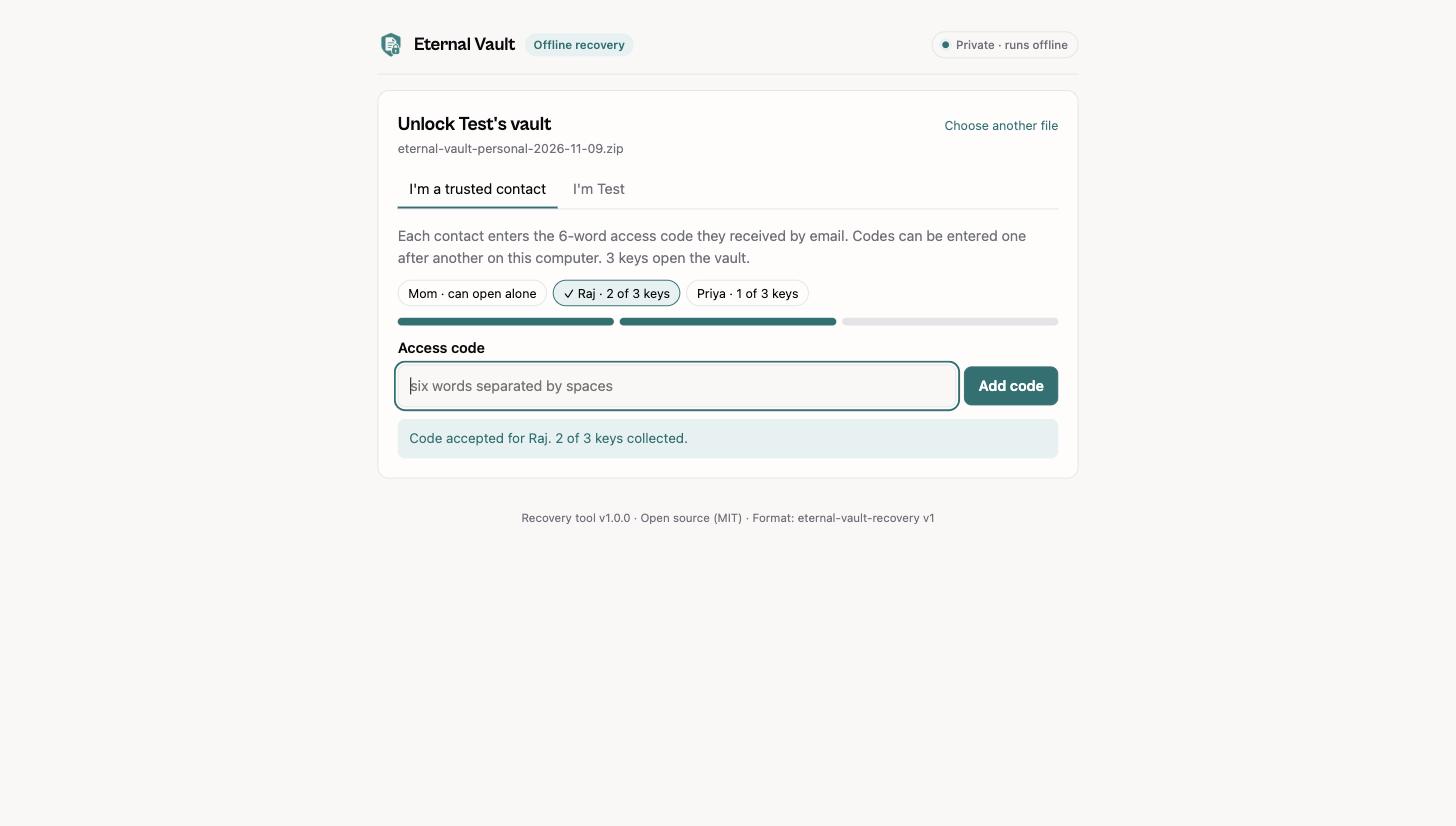
Type your 6-word code and select Add code. If others are needed, they enter their codes on the same computer, one after another. The bar shows how many keys you’ve collected.
4. Open the documents
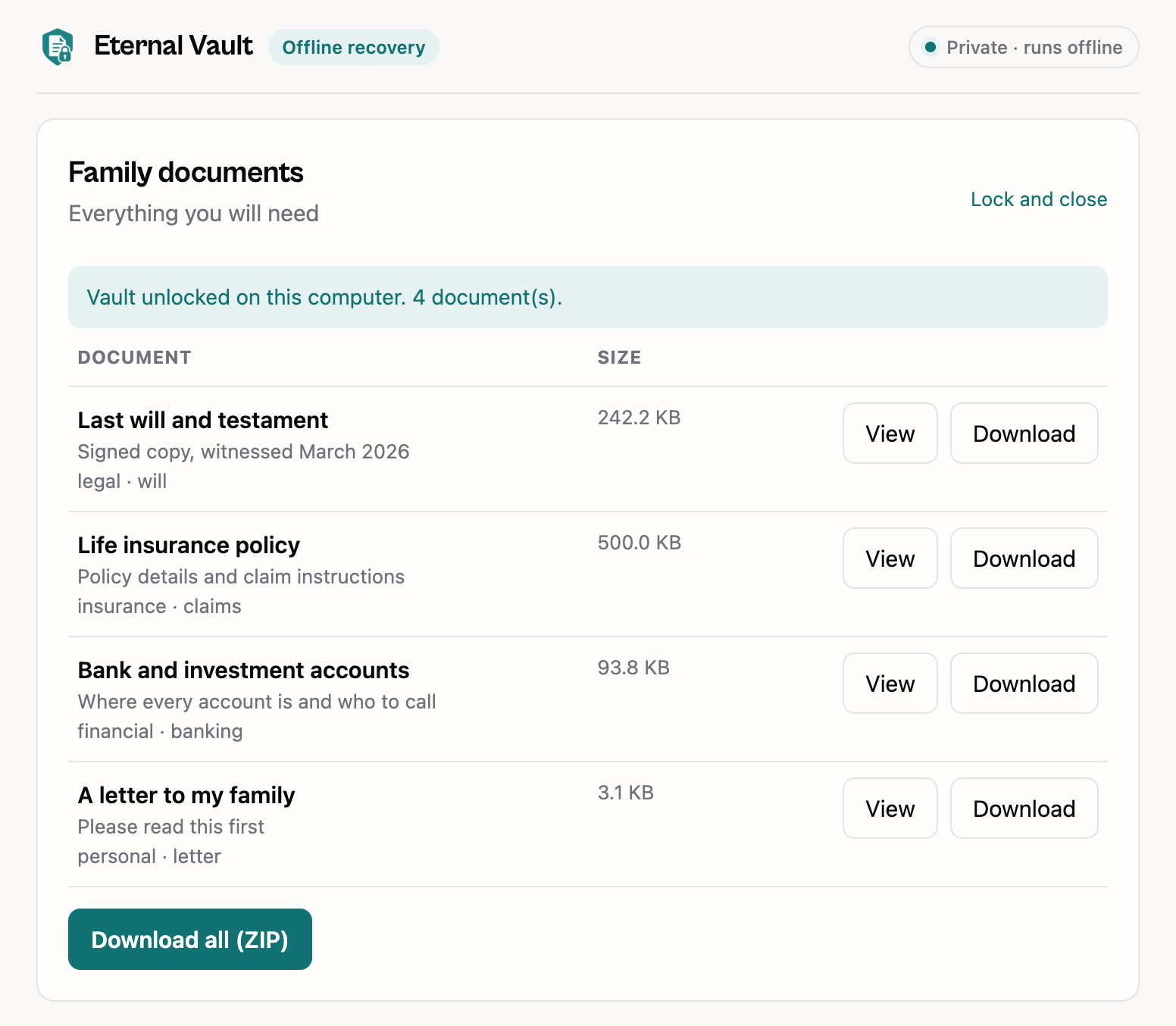
Once enough codes are in, the vault opens. View or download each document, or select Download all (ZIP).
Good to know
- Nothing leaves your computer. The tool works fully offline and sends nothing anywhere.
- Only type your code into
recover.html. Never into a website or form that asks for it. - Downloaded documents are no longer protected. Store them somewhere safe once you’ve saved them.
Trouble?
- “This code does not match anyone”: check each word for typos. Codes are six lowercase words.
- The vault doesn’t open after your code: more keys are needed. Other contacts enter their codes too; the letter says who.
- “This ZIP does not contain bundle/manifest.json”: choose the original
.zip, not an unzipped or re-zipped copy.