
Practice Run
A Practice Run lets you safely test how your trusted contacts will access your vault when the time comes. You don’t have to wait for a real event, and your documents are never exposed.
Think of it as a fire drill. Everyone goes through the real steps, so you and your contacts know exactly what to do, but nothing is actually at stake.
Why run a practice run?
Your vault is only useful if your trusted contacts can actually open it when they need to. A practice run gives both you and them confidence that:
- Your contacts can find and follow the access link.
- They still have the access code that was sent to them when you added them.
- The whole process works end to end, before it ever matters.
It is the easiest way to remove the uncertainty from the one moment your vault exists for.
How it works
1. You start a practice run
From your Contacts page, open the Practice run card and select Start a practice run. We then email each of your verified contacts a practice-run link.
Good to know: You can run a practice run once every 30 days. This keeps your contacts from being emailed too often.
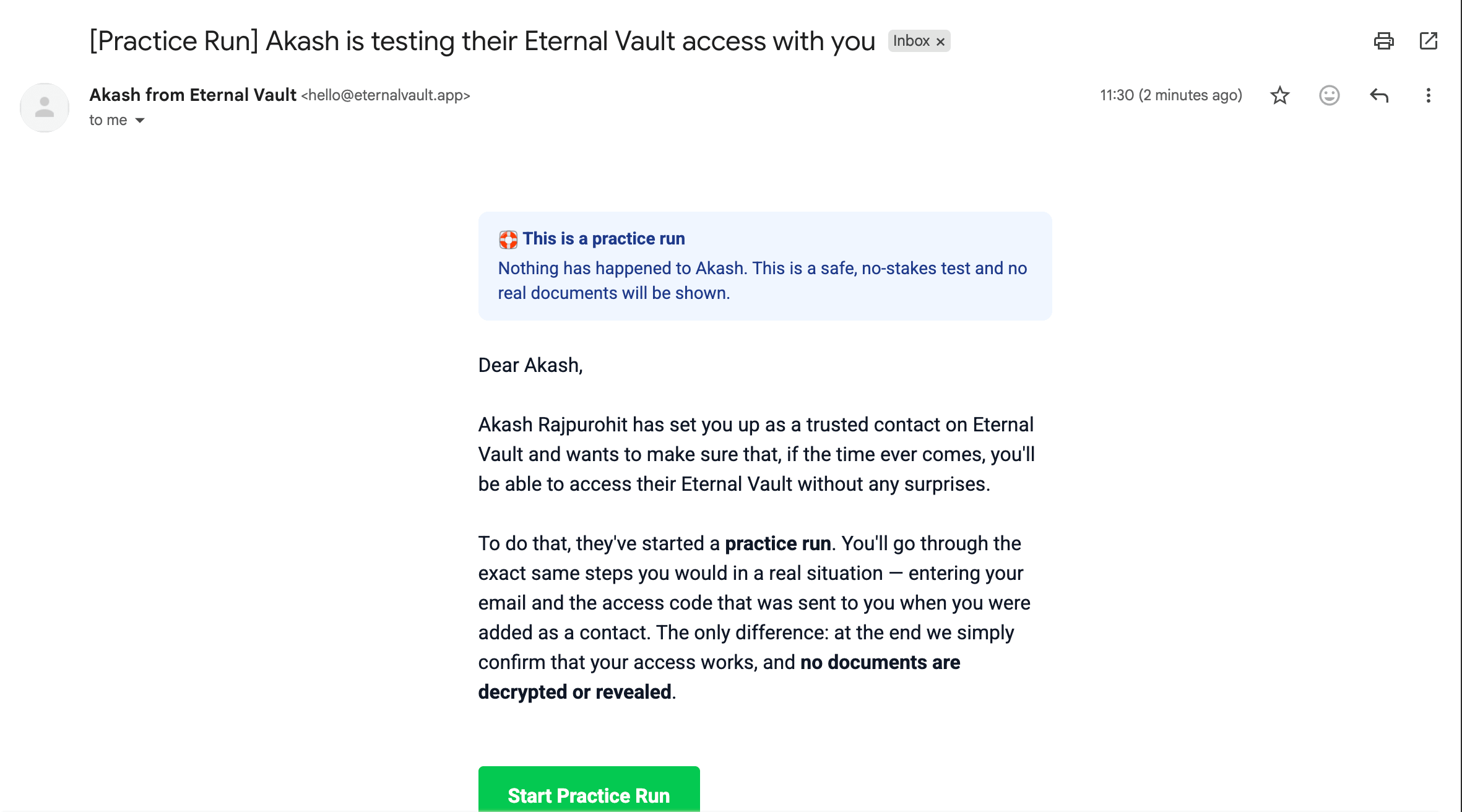
2. Your contacts get a clearly-marked email
Each contact receives an email that is clearly labelled as a drill. It explains that nothing has happened to you and that this is only a safe test. There are no surprises and no alarm.
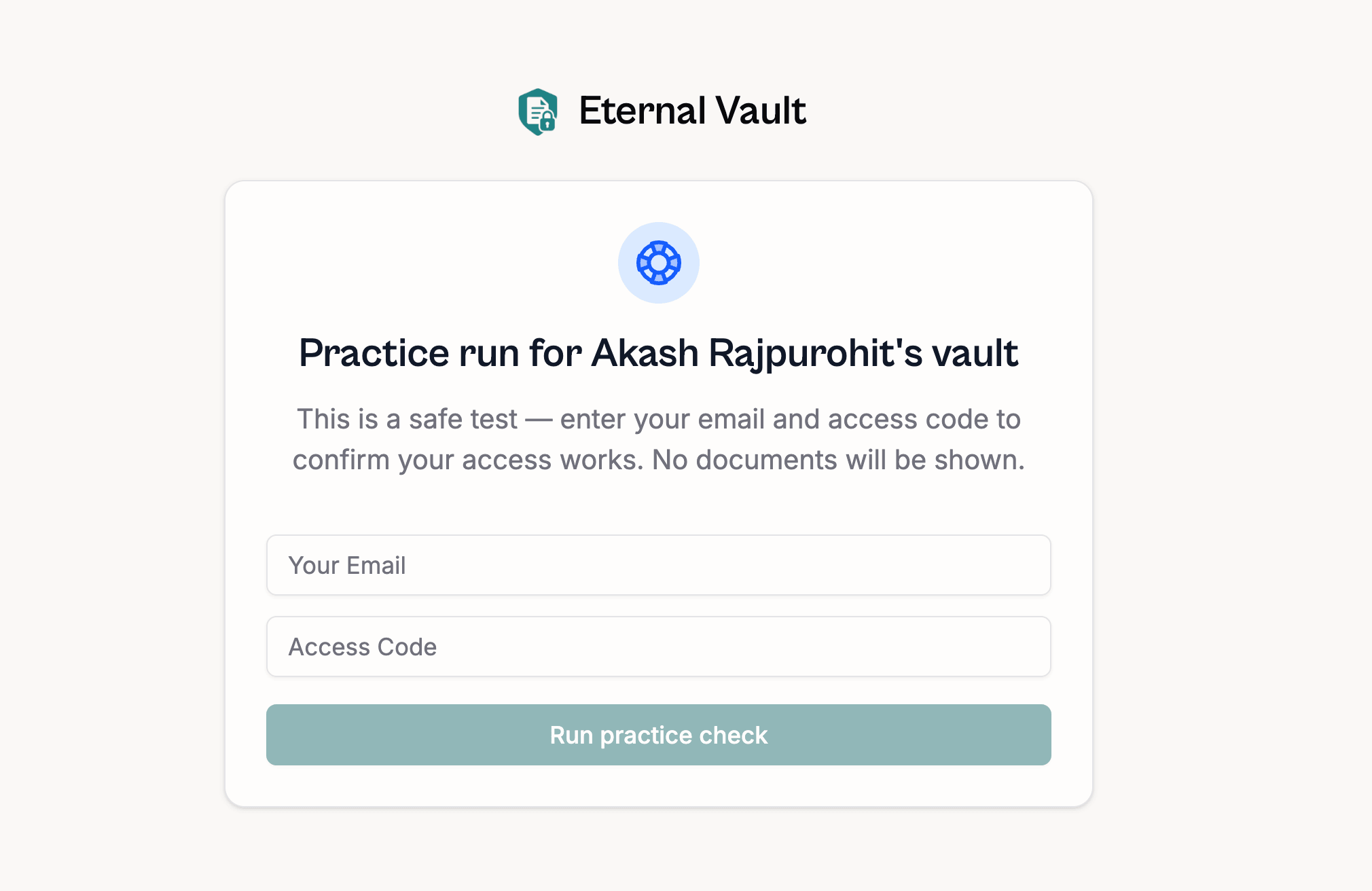
3. Your contacts confirm their access
They open the link and go through the same steps they would in a real situation. They enter their email and the access code they received when you added them as a contact.
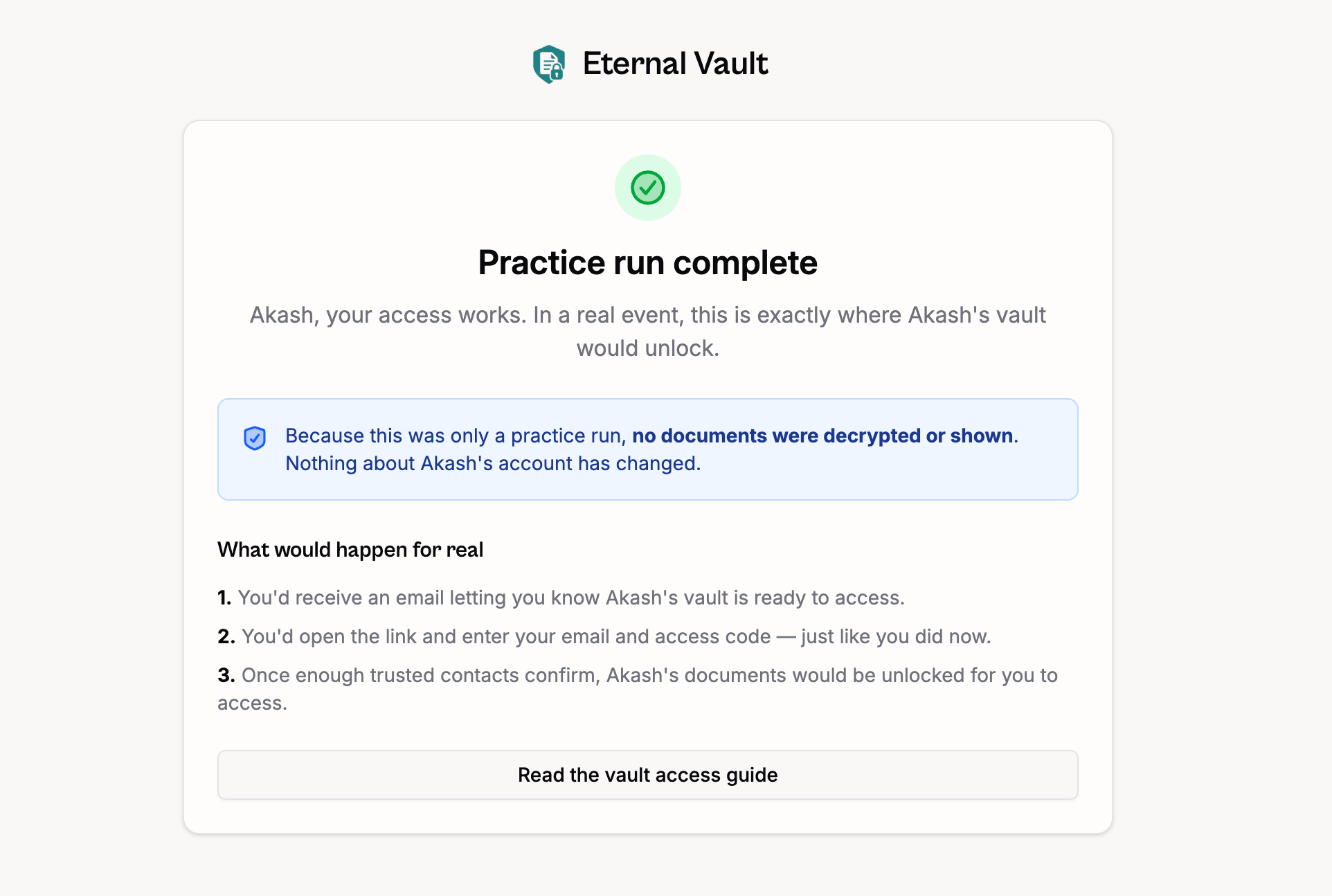
4. They get a simple confirmation
If everything checks out, your contact sees a “Practice run complete” screen confirming their access works. On your side, the practice-run card updates to show which contacts have confirmed.
What does not happen
This is the most important part. During a practice run:
- No documents are ever decrypted or shown. Your contacts only confirm that their access works. They never see your files.
- Nothing about your account changes. Your vault stays locked and your settings are untouched.
- Your inactivity timer is not affected. A practice run is completely separate from the real monitoring system.
In short, it gives you all of the reassurance with none of the risk.
What is expected of you
- Have at least one verified contact. If a contact hasn’t verified yet, ask them to complete verification first.
- Let your contacts know a practice email is coming, so they are expecting it.
- Review the results. If a contact can’t complete the run, check in with them and make sure they have their access code saved.
For trusted contacts
If you’ve received a practice-run email from someone who trusts you:
- Don’t worry, nothing has happened to them. This is a safe test, clearly marked as a drill.
- Open the link and enter your email and the access code you were given when you were added as a contact.
- You’ll get a confirmation that your access works. You will not see any documents. That only happens in a real event.
- If you can’t find your access code, reach out to the person directly so they can help you before it ever matters.